Selector S2AP Operations Guide - Widgets
Selector Software Operations Guide - Part 2
This part of the S2AP Operations Guide describes the fundamentals of widget operation for the S2AP platform from Selector AI Software. This part of the guide is divided into several major parts:
Some related features, such as dashboards and maintenance windows, are covered in other documentation. Links to these documents are provided where appropriate.
Widgets, Dashboards, and Query Builder
Widgets provide the representation and abstraction of data ingested by the S2 platform. By default, unless the dashboard was imported from a JSON configuration file, a new dashboard contains no widgets.
Widget Creation
To create a widget, navigate to the empty dashboard and click the Add Widget button:
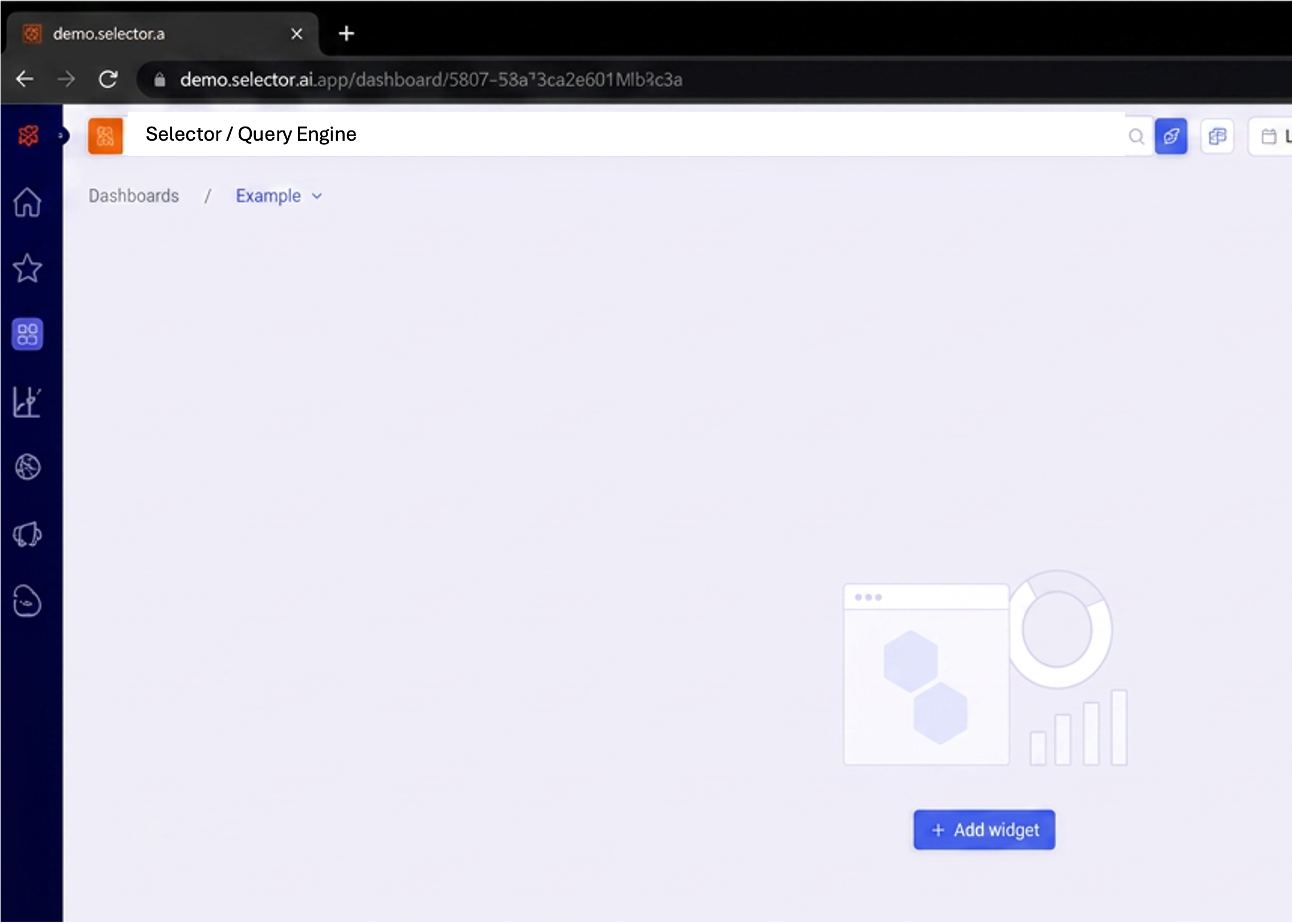
After clicking Add Widget, the Query Builder interface appears.
Note: Custom documentation on how to use the query builder is created and shared on a per-customer basis. Please see your Customer Success Engineer for this documentation.
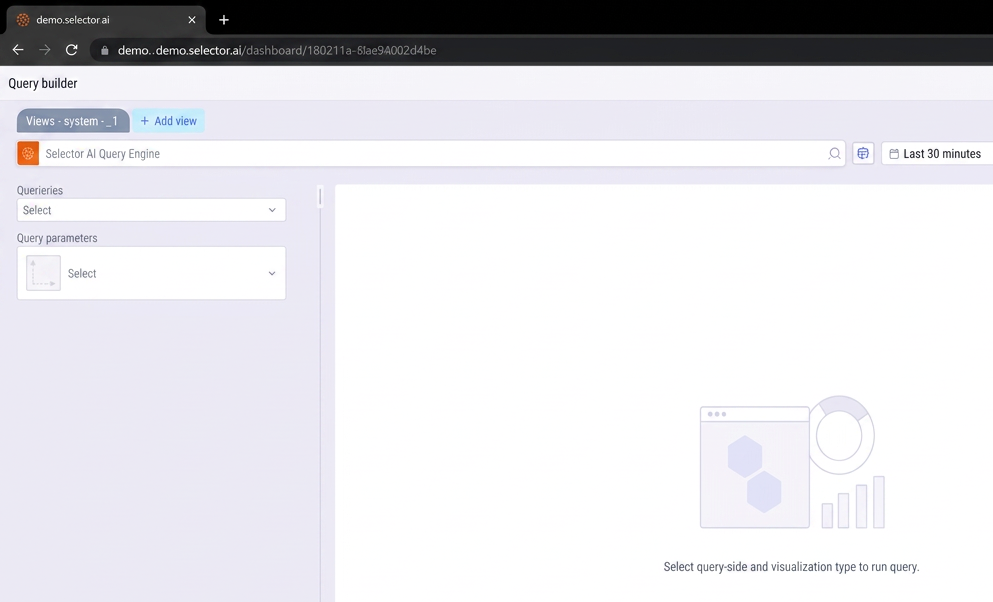
Widgets and the Query Builder
You use the Query Builder to define and preview the desired widget. However, the detailed usage of the Query Builder has its own detailed instruction document. Only the basic process is covered here. For more information, please see:
Selector Software Query Language (S2QL) User Guide
Generally, you use the Query Builder to define the following components:
- The queryable metric/KPI/log file: uc1_cpu_utilization
- A visualization type: Line Plot
- Any filters: device_name =~ .*NF.*
As the values are selected, the query is generated in the Query Builder. In this case, the following S2QL query is generated:
wc1_cpu_utilization as line-plot where device_name=~.*NF.*
The timeframe of the widget is defined in the Query Builder. In this case, the default value of 30 minutes is used.
Once the query is defined, click the Run Query icon in the Query Builder This generates the line plot widget as shown below:
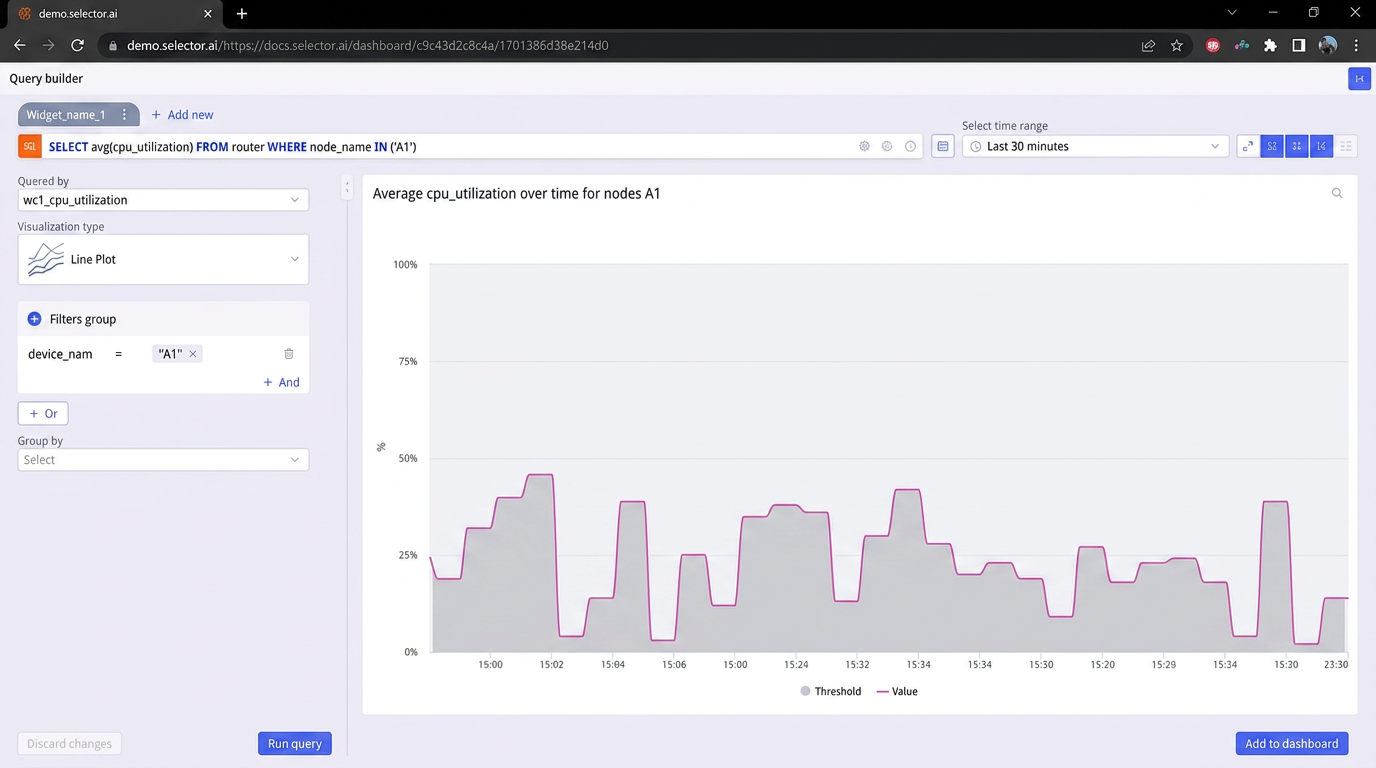
Note that it is possible to create multiple tabs in a widget. In this example, only one tab is used.
Adding the Widgets to the Dashboard
Once the user is satisfied with the widget’s output, click the Add to dashboard icon of the Query Builder:
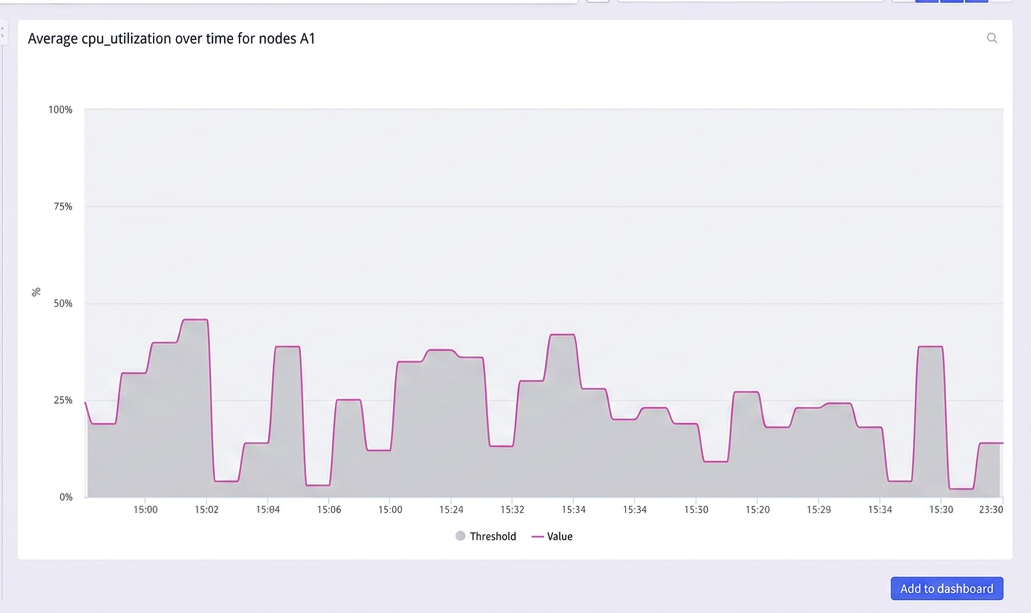
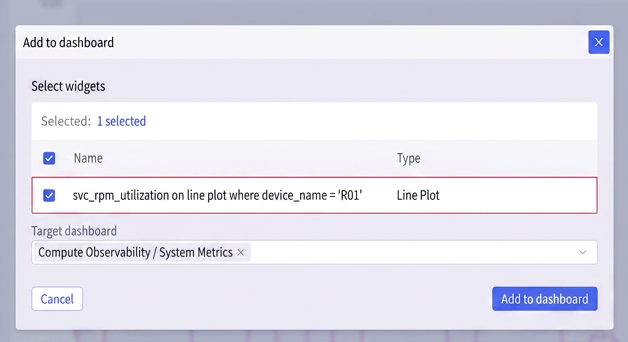
A dialog box appears, and a selection is presented to allow the user to choose the query or widget for the dashboard. If multiple tabs are created in the Query Builder, they re all displayed and selectable here:
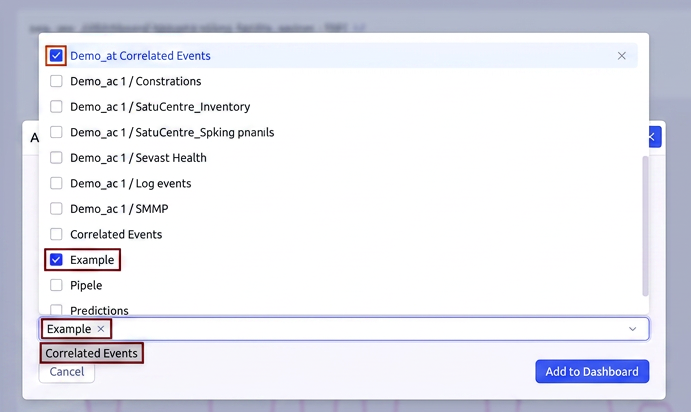
Next, scroll down and locate the desired target dashboard. In this case, the Example dashboard is selected:
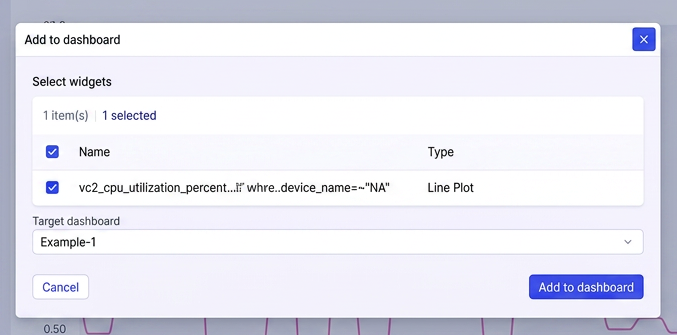
Once everything looks good, click Add to dashboard in the dialog box:
A message appears stating that the operation was a success. At the same time, the user is taken to the updated dashboard where the added widget is visible at its default size:
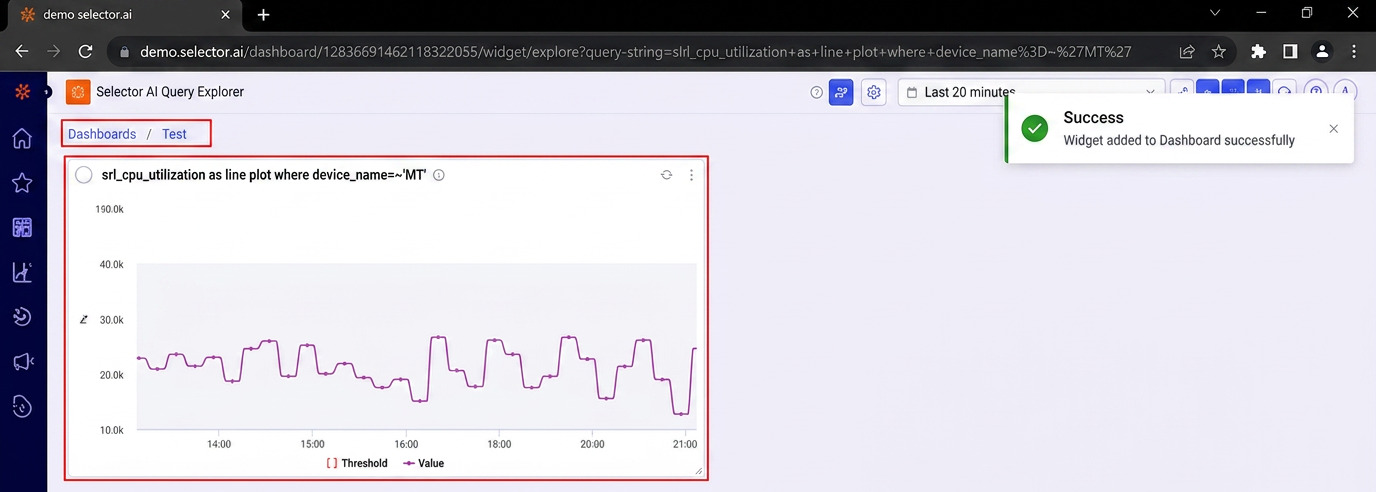
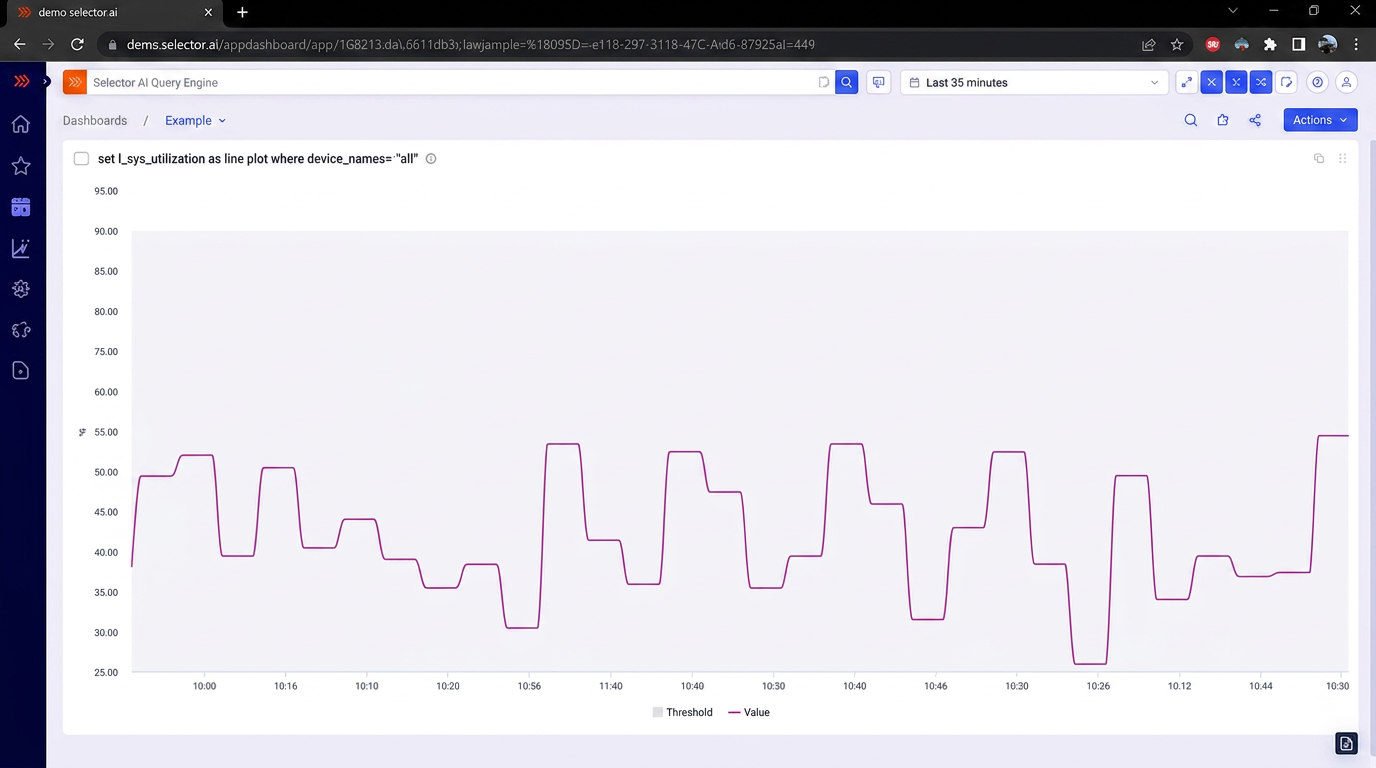
You can resize the widget by clicking the bottom right corner of the widget and dragging the size to the desired scale.
The user can also click and drag the top of the widget to move it to the desired location in the dashboard. The widget has been resized below to fill the visible screen:
Working with Widgets
Widgets have several operations associated with them. Hovering over the name of a widget produces a slide-out menu containing the following optional operations:
- Query the widget with a natural language phrase using S2 Query Language (S2QL)
- Editing a Widget
- Maximizing a Widget
- Copying a Widget
- Deleting a Widget
- Sharing or Exporting a Widget
- Searching a Widget
The above options are detailed below.
Querying a Widget Using S2 Query Language (S2QL)
You can use a natural language phrase for a Widget’s S2QL query. This allows a user to more quickly formulate a widget’s S2QL query.
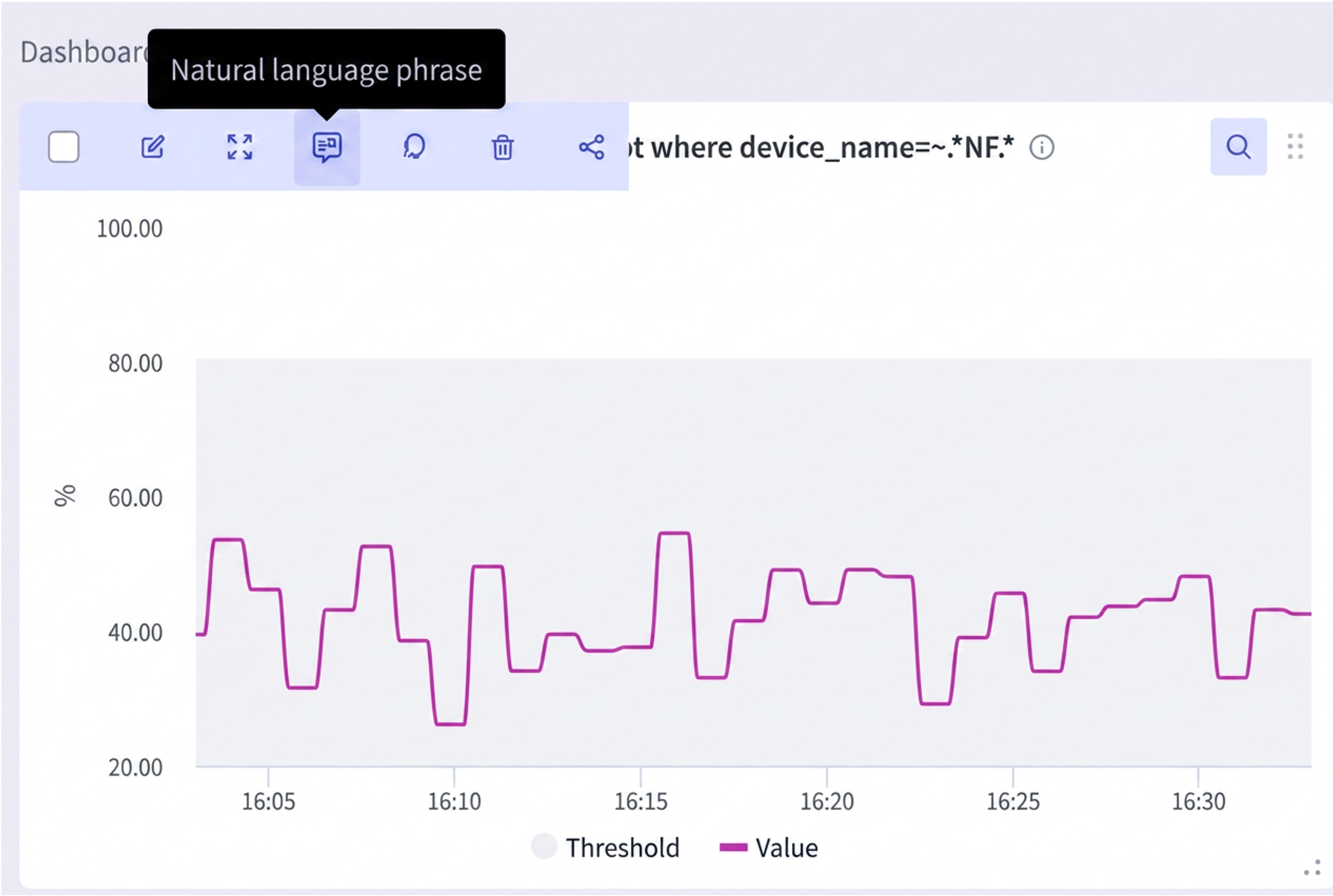
When you click on the natural language phrase option on the dashboard widget, a dialog box appears prompting the user to enter a natural language phrase for the widget’s S2QL query.
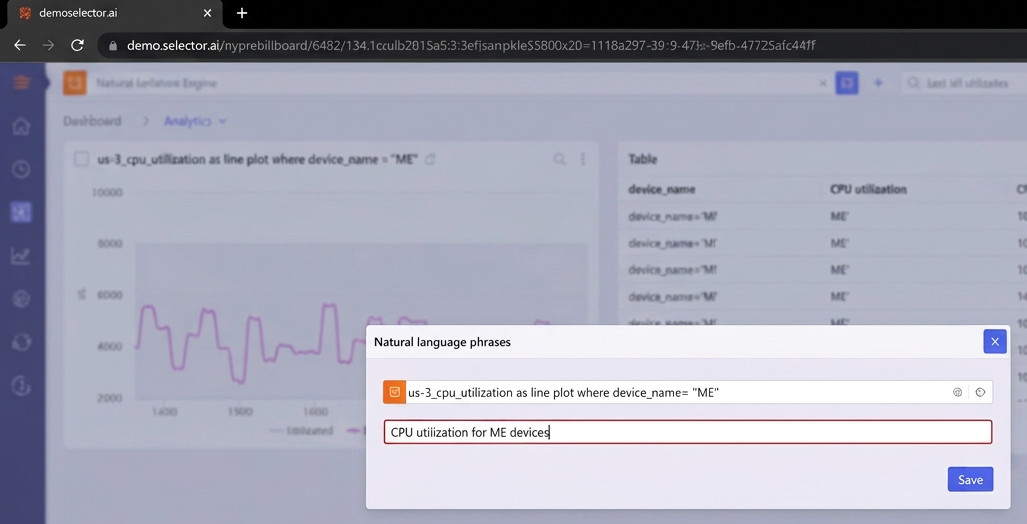
This example uses the following natural language phrase for the widget’s S2QL query: “CPU Utilization for NF* Devices”
Once formulated, this natural language phrase (NL phrase) can be used anywhere in the S2 platform web GUI as well as from Slack or Teams (assuming that Slack or Teams have been integrated with the S2 platform):
For more information on Selector Integrations, see Selector Software Integrations